
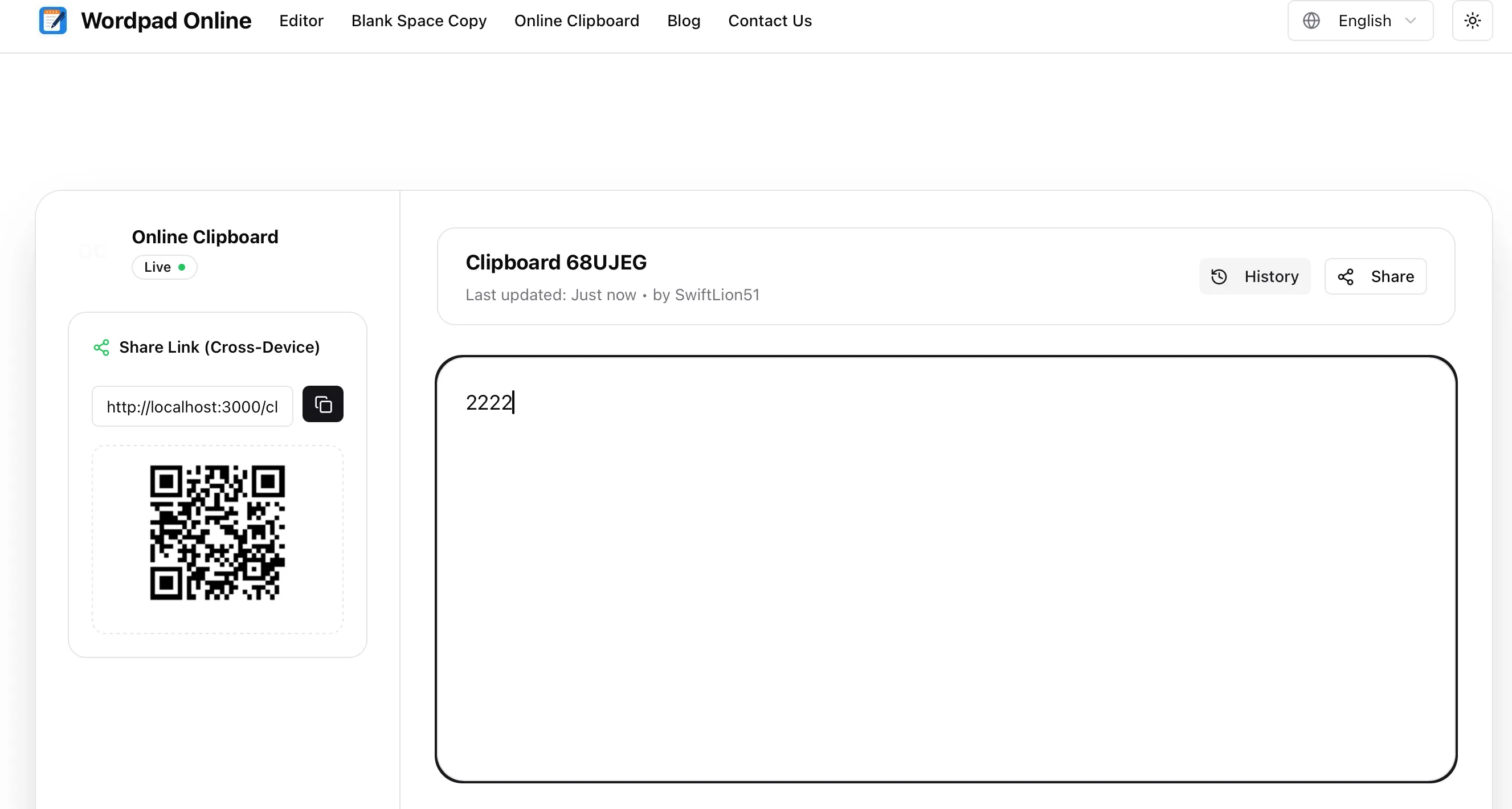
Online Clipboard: Text Storage & Sharing
A powerful, free online clipboard tool. Instantly save notes, manage text snippets, and share securely with self-destructing links. No login required.
Why We Built Online Clipboard
In our digital lives, we often need a quick place to "park" some text. Maybe it's a piece of code you need to move from your laptop to a server, a drafted email you want to save for later, or a long URL you need to share with a colleague.
Traditional methods are often cumbersome:
- Emailing yourself? Slow and clutters your inbox.
- Chat apps? Mixes important snippets with casual conversation.
- Local notepads? Don't sync across devices and are hard to share.
That's why we created Online Clipboard — a dedicated, lightweight tool designed for temporary text storage and quick sharing. It's built right into Wordpad Online, offering a seamless experience without any sign-up barriers.
Key Features
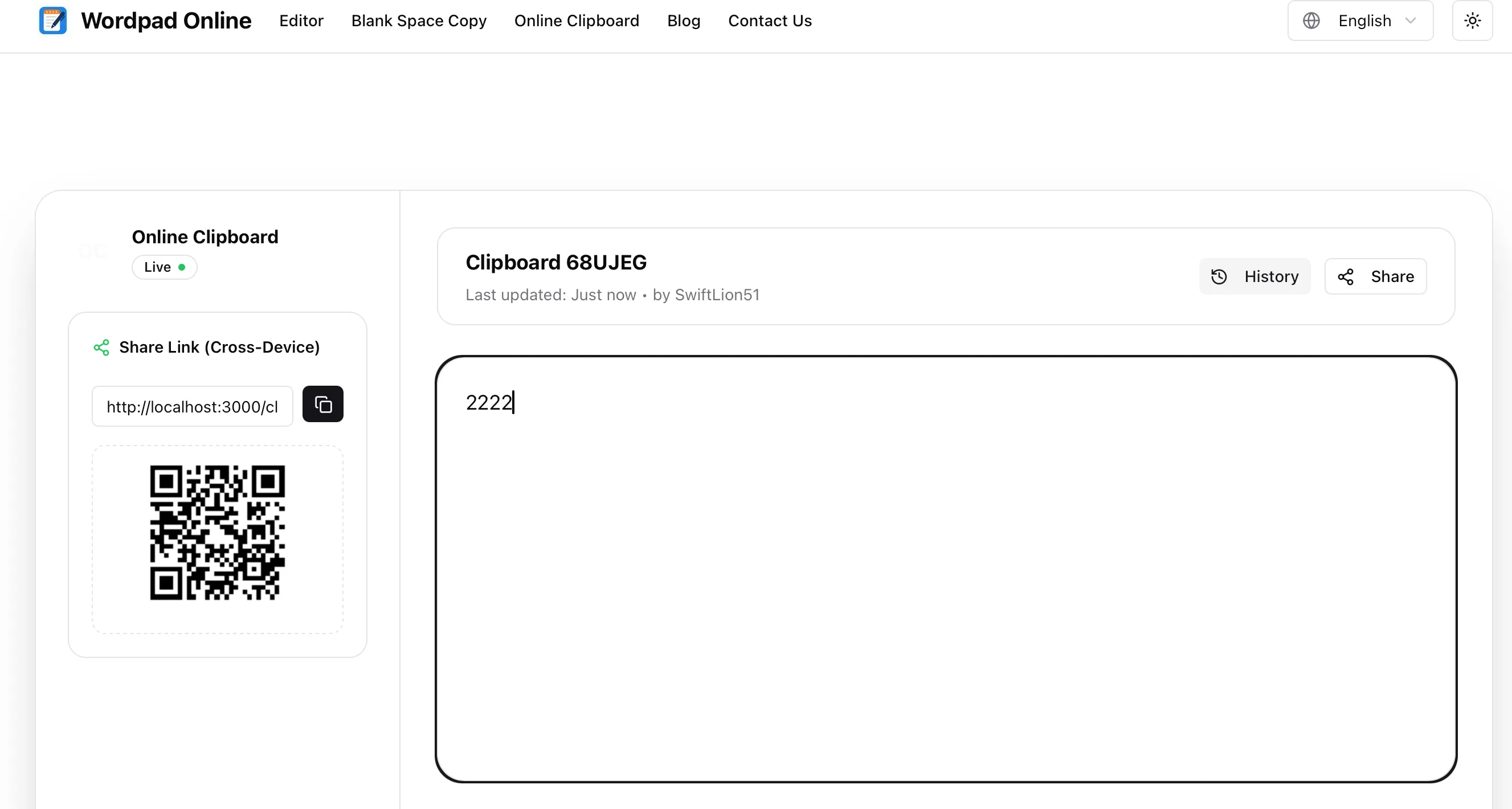
1. Instant Auto-Save & Local History
The moment you start typing, your content is saved locally to your browser. You never have to worry about losing that important phone number or code snippet because you accidentally closed the tab.
The Sidebar History keeps track of your recent clips. You can easily switch between different notes, creating a temporary library of your thoughts.
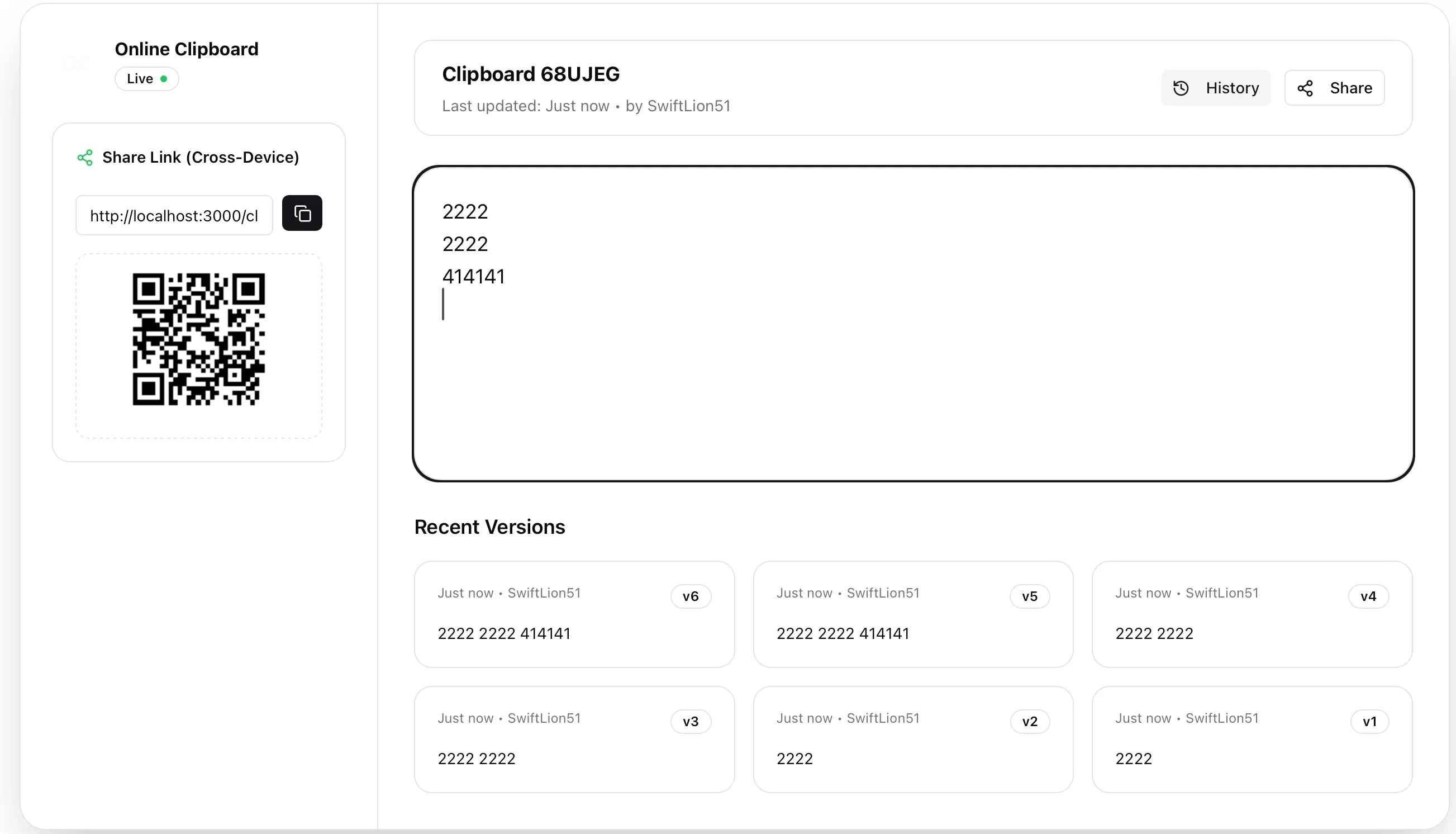
2. Cloud Sharing with One Click
Need to send text to another device or a friend? Just click the Share button.
We generate a unique, secure link for your content. You can set an expiration time (e.g., 24 hours, 7 days) to ensure your shared data doesn't linger on the web forever. It's the perfect way to pass sensitive information like API keys or config files securely.
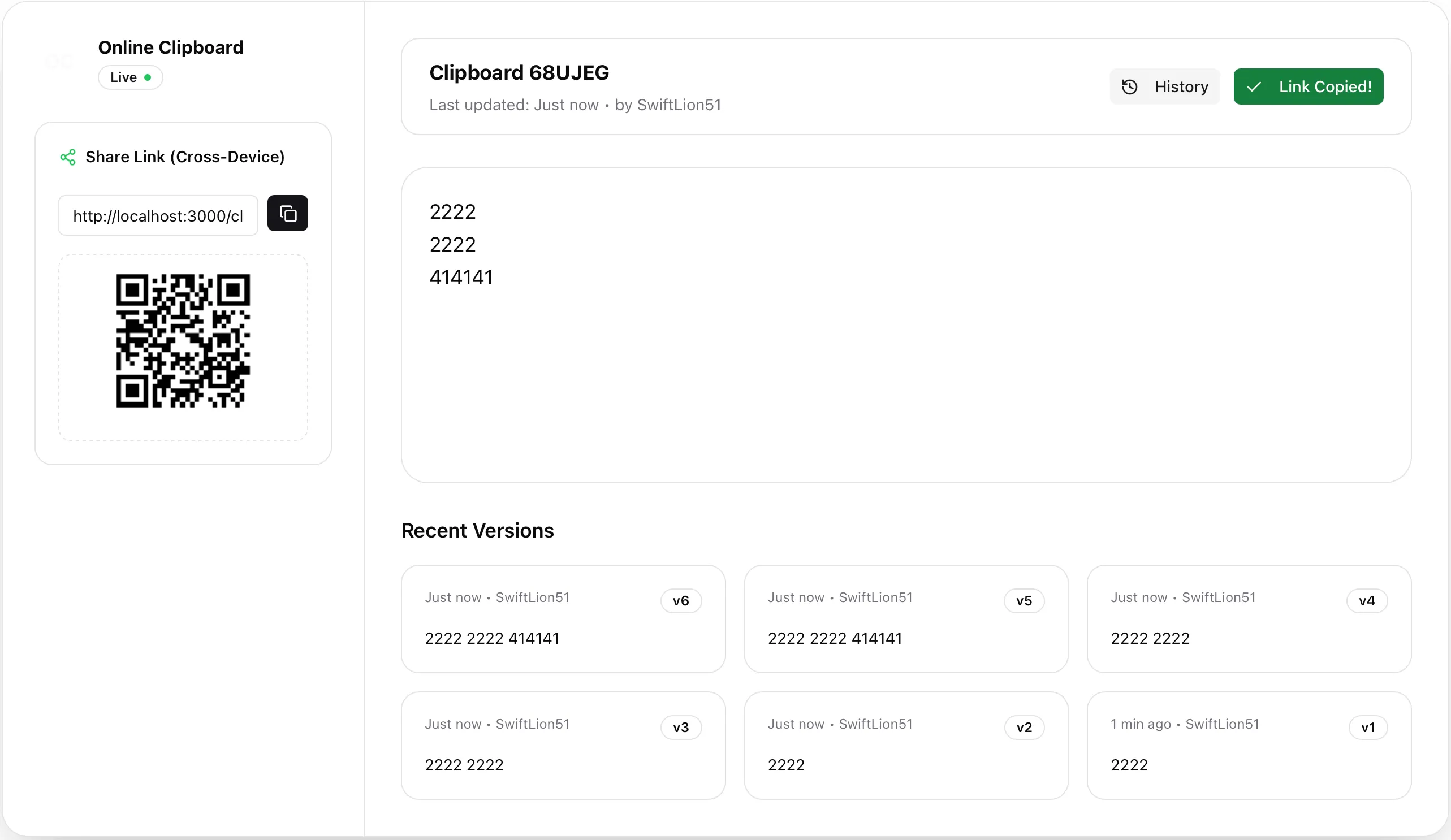
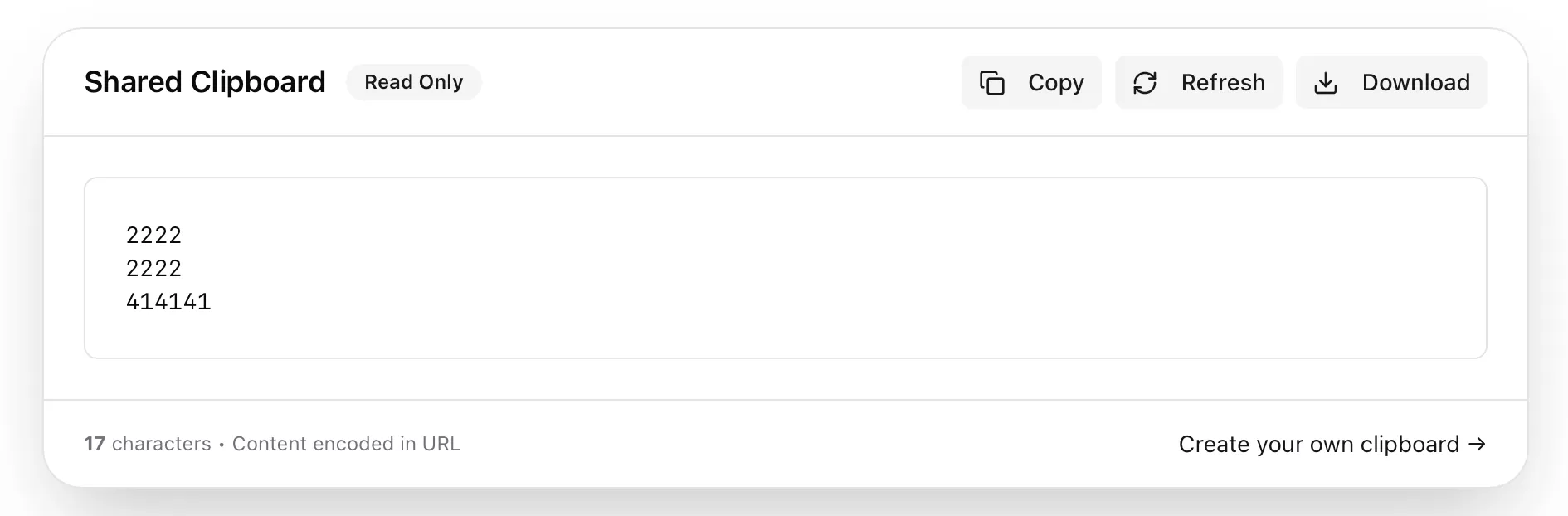
3. Read-Only Shared View
When someone opens your shared link, they see a clean, read-only version of your text. They can easily copy the content with a single click, but they cannot modify your original note. This ensures the integrity of the information you share.
4. Privacy First
We believe in privacy.
- Local First: Your private clips are stored in your browser's LocalStorage. They don't touch our servers until you explicitly choose to share them.
- Temporary Cloud Storage: Shared clips are automatically deleted from our servers after your chosen expiration time.
- No Tracking: We don't require accounts, emails, or personal data. Just open and use.
How to Use Online Clipboard
Step 1: Create a Clip
Navigate to the Clipboard tab in the navigation menu. Click the "+" button to start a new clip. Type or paste your text into the editor. It supports basic formatting like bold, italic, and code blocks.
Step 2: Manage Your Clips
Use the sidebar to rename your clips for easy identification. You can delete clips you no longer need to keep your workspace clean.
Step 3: Share (Optional)
If you need to transfer the text, click "Share". Choose how long you want the link to be active (e.g., "7 Days") and click "Publish". Copy the generated link and send it to anyone.
💡 Pro Tip: Cross-Device Transfer
Use the "Share" feature to quickly move text between your computer and phone. Create a clip on your desktop, share it, and open the link on your mobile browser. It's faster than emailing yourself!
Start Using It Today
The Online Clipboard is live now and completely free to use. Whether you are a developer, a writer, or just someone who needs a better way to handle text snippets, give it a try.